How to Collaborate with Teams
Teams lets several people work on the same projects. Open Teams under Workspace in the left sidebar to see your team dashboard, manage members, and organize your work into channels.
What you need before you start
- A Maestra Studio account that you are signed in to. If you do not have one, create a free account.
- A plan that includes Teams. See Credits, Plans and Usage.
Team dashboard
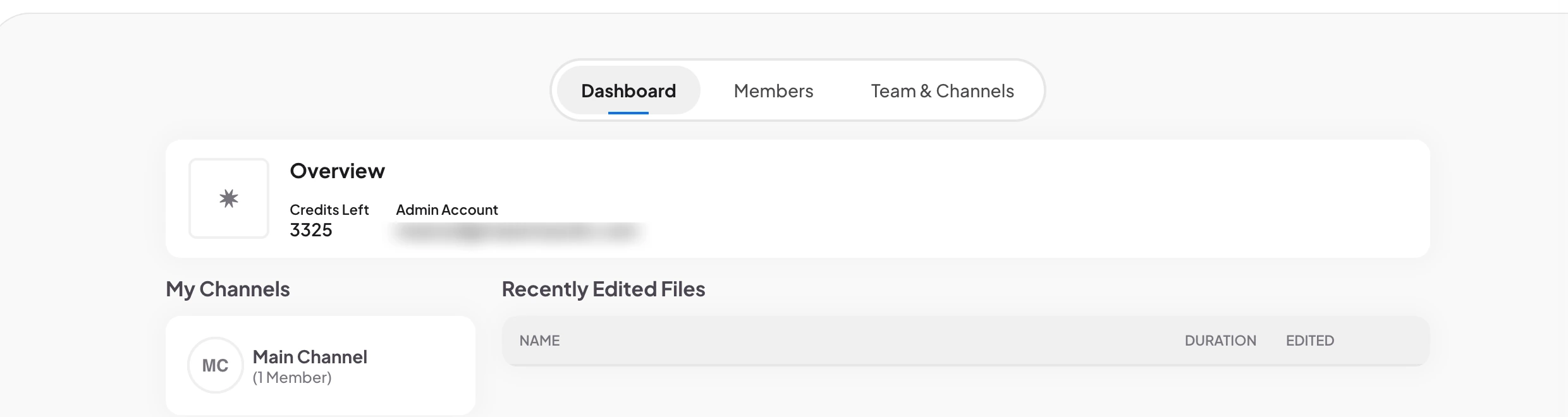
The Dashboard tab shows an overview of your team: the credits left and the admin account, your channels under My Channels, and the files edited most recently under Recently Edited Files.
Manage members
Open the Members tab to see Member Management. It lists every member with their role, shows how many team members and editors you have, and lets you control each person's access.
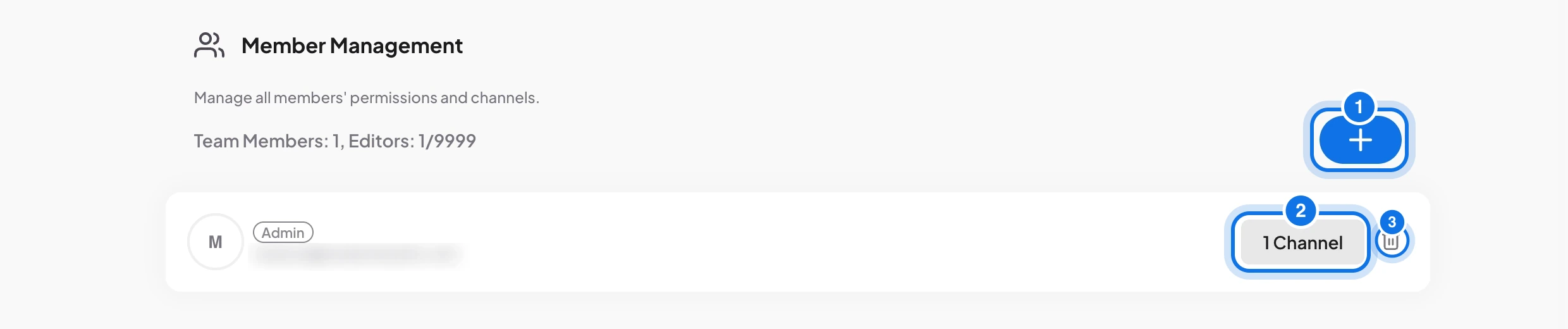
- Select the plus button (marked 1) to add a member.
- Select the channels button on a member's row (marked 2, for example 1 Channel) to choose which channels that person can open.
- Select the bin icon (marked 3) to remove a member.
Create and manage channels
Channels keep projects organized. Open the Team & Channels tab to edit your team's logo and name and to manage channels under Channel Management.
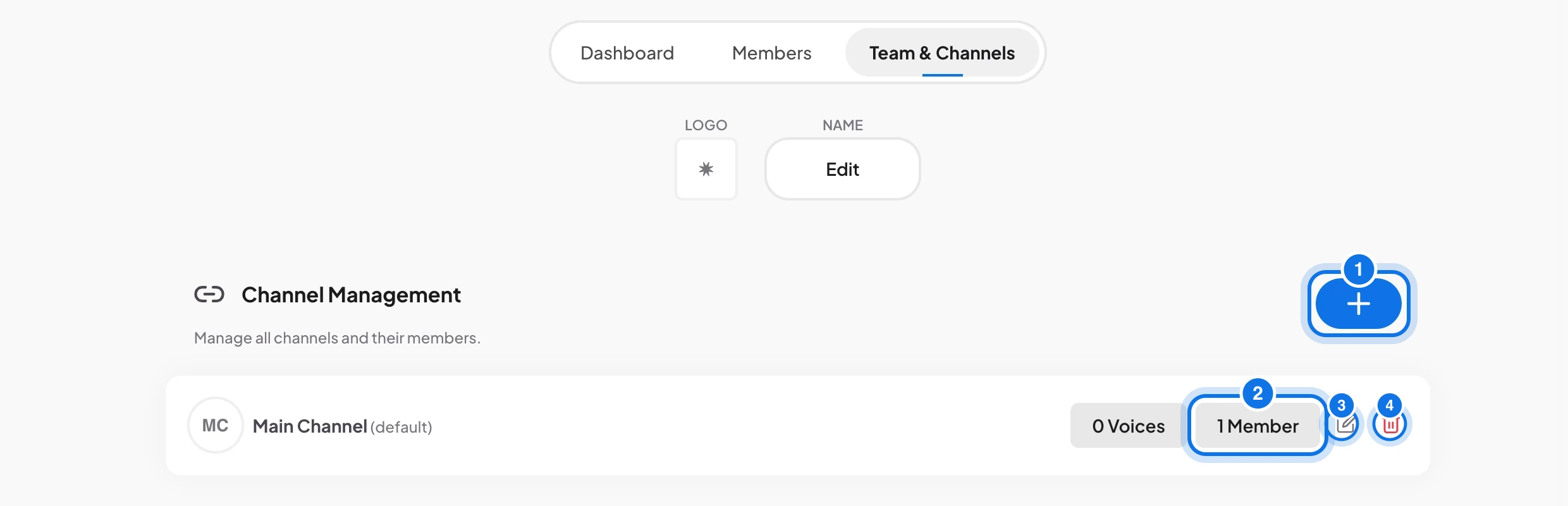
- Select the plus button (marked 1) to create a channel.
- Select the Members button (marked 2) on a channel to see who has access.
- Select the pencil icon (marked 3) to rename a channel, or the bin icon (marked 4) to delete it.
Your Main Channel is the default channel. To work in a different channel, use the Current Channel menu at the top of the left sidebar.
Frequently asked questions
Open Teams, select the Members tab, and use the plus button to add a member. Then choose which channels they can open.
A channel is a shared space for projects. Members can only open the channels you give them access to.
Use the Current Channel menu at the top of the left sidebar.
Yes. Open the Members tab and select the bin icon on that member's row.
The admin account is shown in the Overview on the team dashboard. It is the account that created and manages the team.