How to Create a Maestra Studio Account
Maestra Studio is an AI platform that transcribes audio, creates subtitles, translates videos into more than 125 languages, and generates AI voiceovers. To get started, create a free account at app.maestra.ai with Google, Apple, or your email address, then follow the guides in this help center.
What you need before you start
- An email address, or a Google or Apple account, to sign up.
- A video or audio file you want to work on, or a link to one.
Create your Maestra Studio account
- Go to maestra.ai and select Get Started Free, or open app.maestra.ai/signup directly.
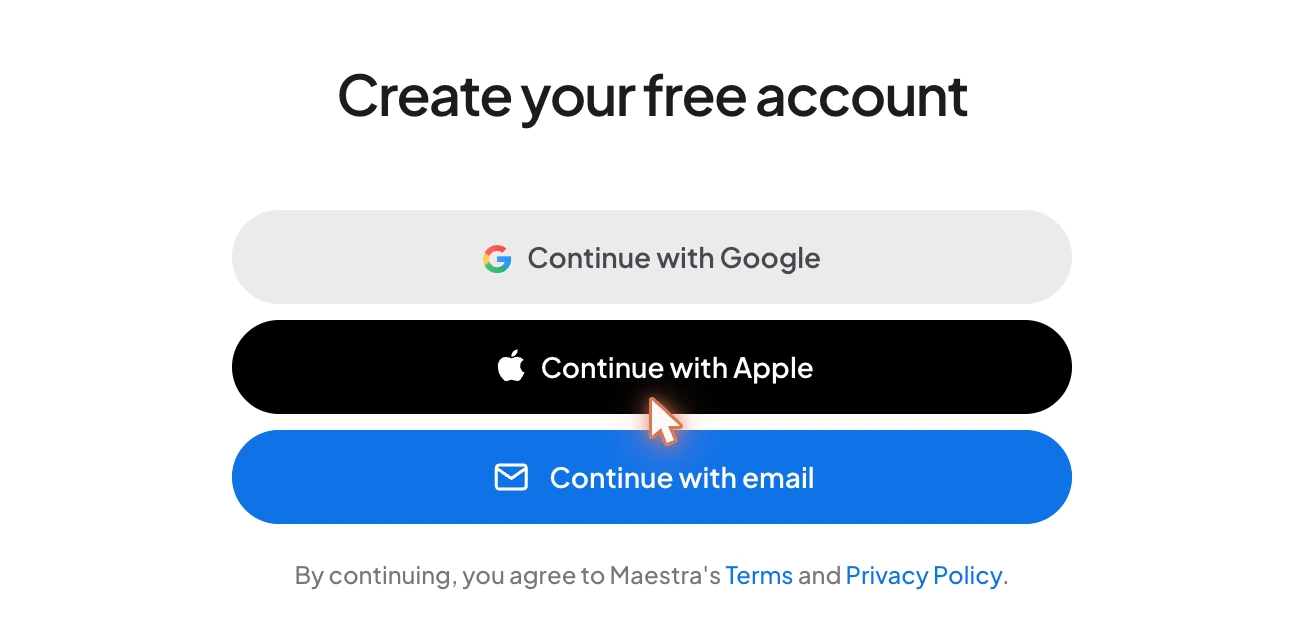
- Choose how to sign up:
- 2.1 Continue with Google
- 2.2 Continue with Apple
- 2.3 Continue with email
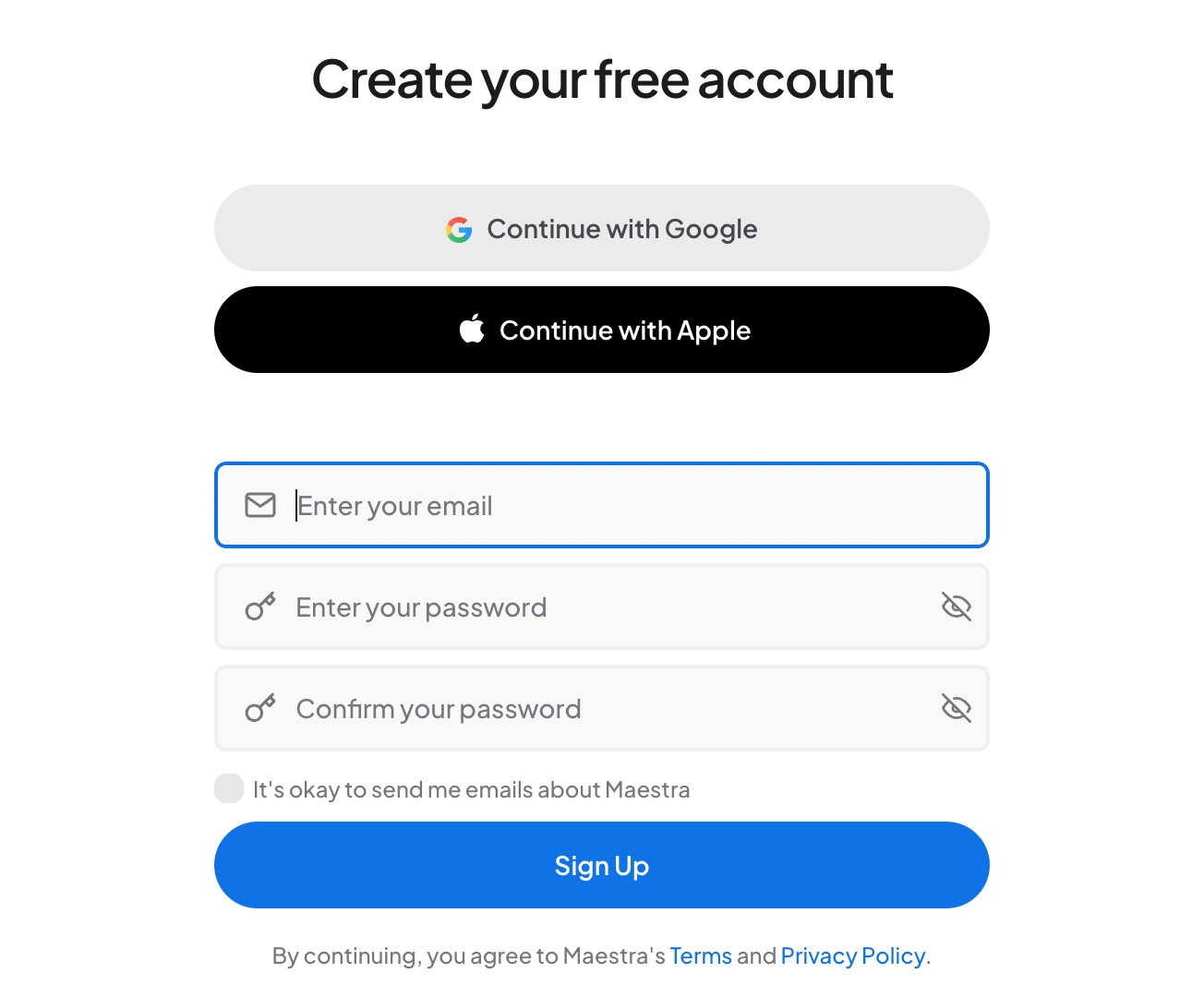
- If you choose email, fill in the form:
- 3.1 Enter your email address.
- 3.2 Type a password and confirm it.
- 3.3 Select the checkbox if you are happy to receive emails about Maestra Studio (optional).
- 3.4 Select Sign Up.
Already have an account? Select Login at the top right of the sign-up page. The language menu next to it changes the language of the page.
Find your way around Maestra Studio
After you sign in, you land in your library. The left sidebar is your main navigation. Here is every item in it, from top to bottom.
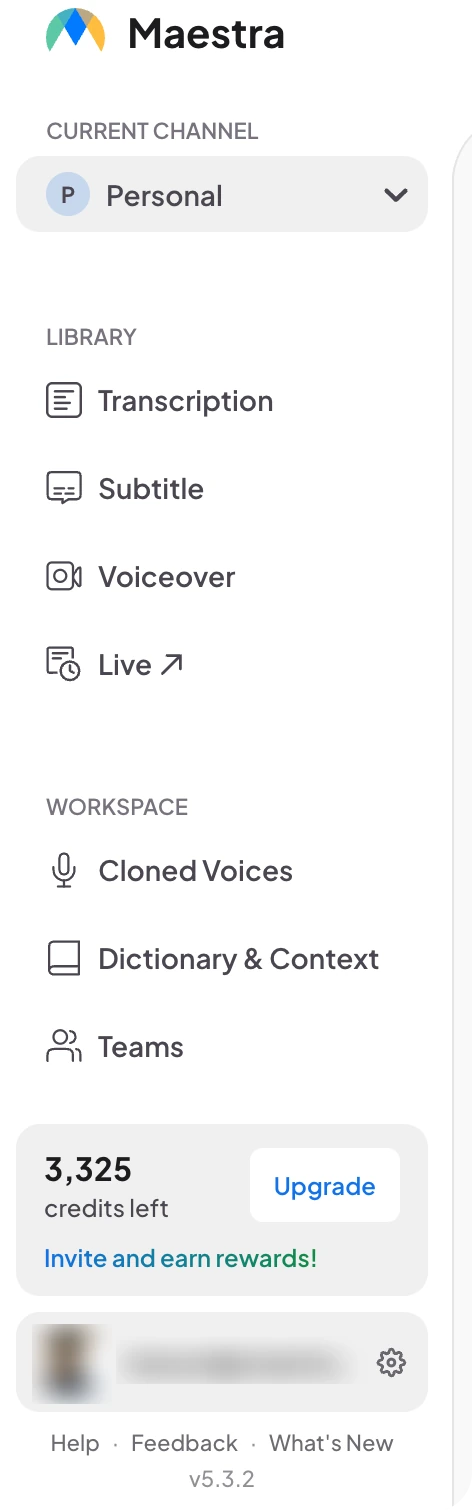
Current Channel
Shows which workspace you are in, Personal or a team channel. Open the menu to switch. See Your Library and Teams.
Library
- Transcription: turn audio and video into text. See Upload a File and Get a Transcript.
- Subtitle: create, translate and style subtitles. See Upload a File and Create Subtitles.
- Voiceover: generate AI voiceovers and dubs. See Upload a File and Create an AI Voiceover.
- Live: opens Maestra Live, our separate product for real-time captions and translation, in a new tab.
Workspace
- Cloned Voices: manage voices you cloned. See How to Clone a Voice.
- Dictionary & Context: teach Maestra Studio your terms. See Dictionary & Context.
- Teams: work together in shared channels. See Collaborate with Teams.
Credits box
Shows your remaining credits. Upgrade opens the Plans page, and Invite and earn rewards! opens the referral page. See Credits, Plans and Usage.
Account row
Shows your picture and name. The gear icon opens your account settings. See Account Settings.
Help, Feedback and What's New
Help opens this help center, Feedback opens the feedback board, and What's New opens the changelog. The number under them is your Maestra Studio version. The round button at the bottom right of the page opens support, with Maestra Chatbot and Create a Ticket.
Where to go next
- Manage your files: Your Library.
- Translate a video: How to Translate a Video Automatically.
- Learn every editor control: Subtitle Editor, Transcription Editor and Voiceover Editor.
- Work faster: Keyboard Shortcuts and AI Summary.
- Share your work: Share and Embed.
- Connect your tools: Zapier, Slack, Zoom and TikTok Ads Manager.
- Looking for live captions or live translation? Visit the Maestra Live Help Center.
Frequently asked questions
Yes. You can create a free account and try Maestra Studio before you choose a plan.
Yes. Continue with Google or Continue with Apple, and you do not need to create a separate password.
You can transcribe audio and video, create and translate subtitles, generate AI voiceovers, clone voices, and work with your team.
In the Maestra Live Help Center at live.maestra.ai/help.
Check the credits box at the bottom of the left sidebar, or open your account settings.