Caption Appearance
Restyle the on-screen captions: font, size, color, alignment, background, and per-speaker colors.
Maestra Live lets you restyle the on-screen captions so they stay readable. You control the font, size, colors, alignment, background, and per-speaker colors.
Changes apply in real time, and a live Preview shows exactly how your captions will look.
How to customize captions
Caption styling lives in the Appearance settings. During a live session the Appearance tab opens directly, so you can restyle captions on the fly.
- Open Settings → Appearance.
- Adjust the text, alignment, background, and speaker options.
- Watch the Preview update live; your settings are saved automatically.
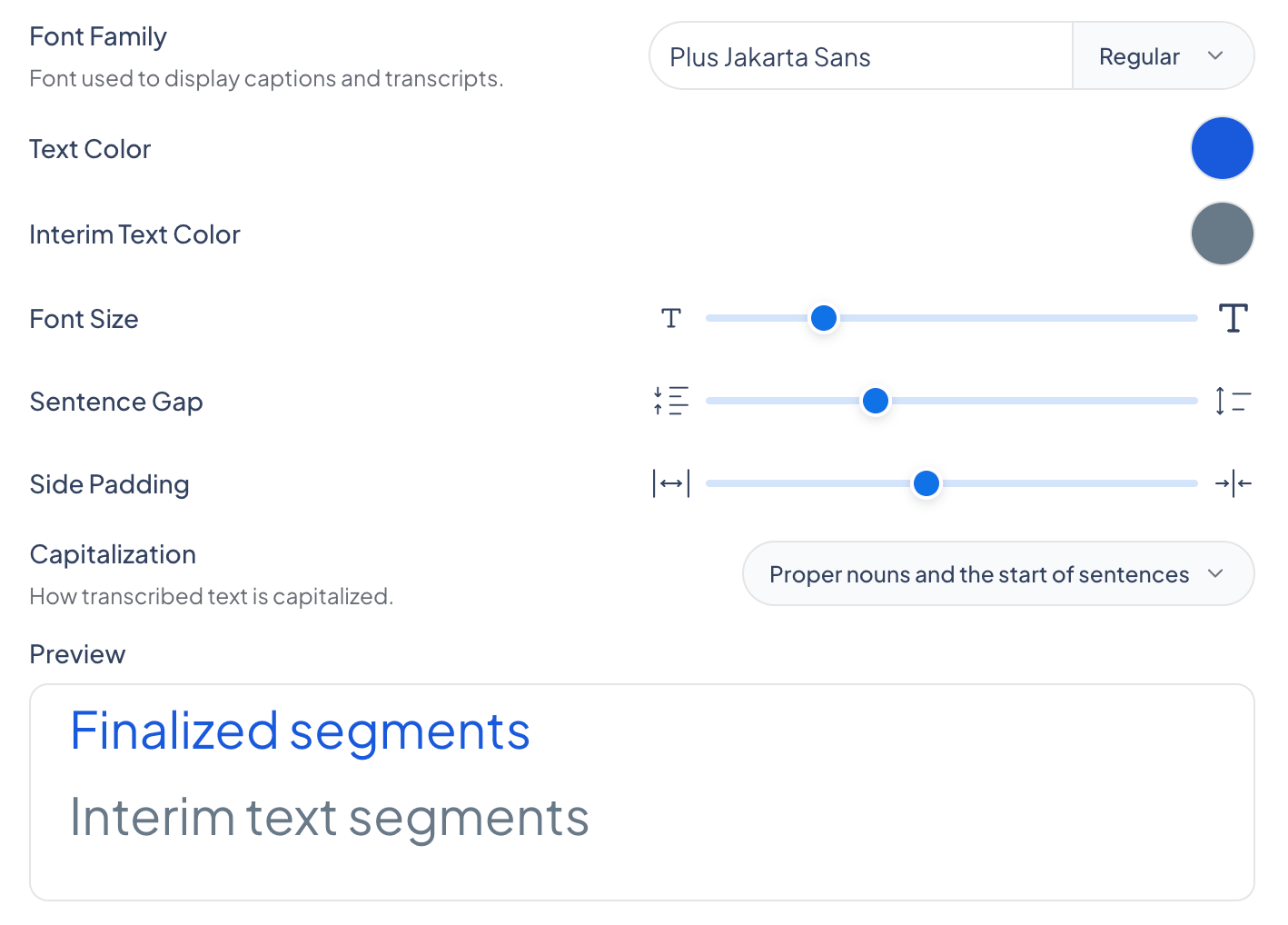
The Preview pane shows exactly how your captions will look as you change each setting.
What you can change
The Appearance panel groups the styling controls into text, alignment, background, and speaker options.
Interface Theme
Set the app’s interface to Light, Dark, or System. This controls the look of the app itself, separate from how the captions are styled.
Text
| Show interim text | Show or hide interim text. When off, captions appear only once they are finalized. |
| Font Family | The typeface used to display captions and transcripts. You can also select the font weight. |
| Text Color | The color of finalized caption text. |
| Interim Text Color | The color of interim text: speech that has been recognized but not yet finalized, so it may still change. |
| Font Size | How large the caption text appears. |
| Sentence Gap | The spacing between sentences. |
| Side Padding | Horizontal padding so captions don’t run to the screen edges. |
| Capitalization | How transcribed text is capitalized: UPPERCASE, First Letter Of Each Word, or proper nouns and the start of sentences. |
Use Reset to Defaults to undo your changes and return to the default caption styling.
Alignment
| Horizontal Alignment | Position captions Full, Left, Middle, or Right. |
| Vertical Alignment | Position captions Full, Top, Middle, Bottom, or Lower Third. |
Background
| Background Color | The color shown behind the captions. |
| Background Opacity | How opaque the caption background is, from transparent to solid. |
Speaker
| Speaker Colors | Assign a color to each detected speaker so it’s easy to tell who is talking. Applies when speaker detection is on. |
| Line Thickness | The width of the colored line shown next to captions to mark the speaker. |
| Tag Font Size | The size of the speaker name tag, which appears only in shareable sessions with guest speakers. |
Frequently asked questions
Interim text is speech that has been recognized but not yet finalized, so it may still change. You can give it its own color so it stands apart from finalized text.