Keyboard Shortcuts and Editing Tips for the Maestra Studio Editors
The Maestra Studio editors have keyboard shortcuts for playback, searching, saving and formatting. To see them inside the app, select the ? button at the top left of any editor. The shortcuts below use the ⌘ symbol, which is the Command key on a Mac.
What you need before you start
- A file open in the subtitle, voiceover or transcript editor. See Upload a File and Create Subtitles to create one.
Subtitle and voiceover editor shortcuts
The subtitle editor and the voiceover editor share the same shortcuts.
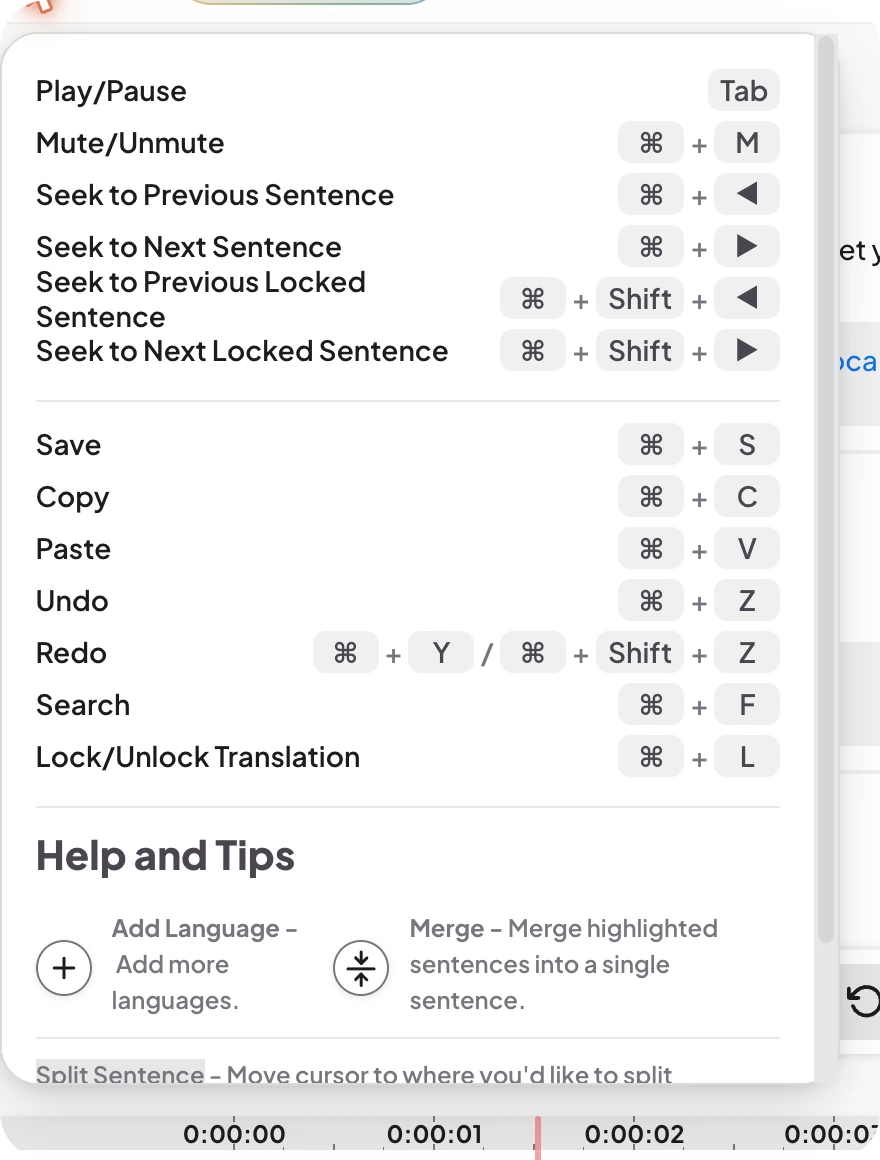
Playback
- Play/Pause: Tab
- Mute/Unmute: ⌘ + M
- Seek to Previous Sentence: ⌘ + Left arrow
- Seek to Next Sentence: ⌘ + Right arrow
- Seek to Previous Locked Sentence: ⌘ + Shift + Left arrow
- Seek to Next Locked Sentence: ⌘ + Shift + Right arrow
Editing
- Save: ⌘ + S
- Copy: ⌘ + C
- Paste: ⌘ + V
- Undo: ⌘ + Z
- Redo: ⌘ + Y, or ⌘ + Shift + Z
- Search: ⌘ + F
- Lock/Unlock Translation: ⌘ + L
Transcript editor shortcuts
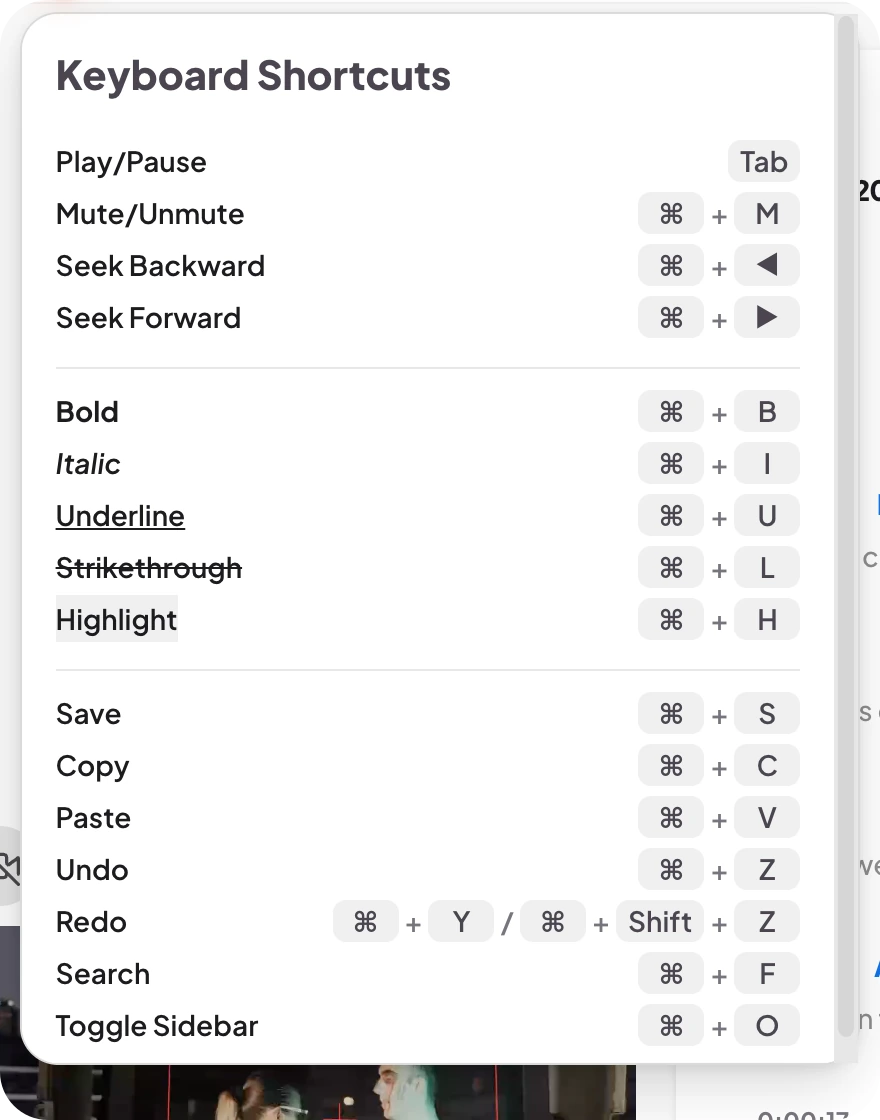
Playback
- Play/Pause: Tab
- Mute/Unmute: ⌘ + M
- Seek Backward: ⌘ + Left arrow
- Seek Forward: ⌘ + Right arrow
Formatting
- Bold: ⌘ + B
- Italic: ⌘ + I
- Underline: ⌘ + U
- Strikethrough: ⌘ + L
- Highlight: ⌘ + H
Editing
- Save: ⌘ + S
- Copy: ⌘ + C
- Paste: ⌘ + V
- Undo: ⌘ + Z
- Redo: ⌘ + Y, or ⌘ + Shift + Z
- Search: ⌘ + F
- Toggle Sidebar: ⌘ + O
Help and tips in the subtitle editor
Scroll down in the ? panel to find Help and Tips.
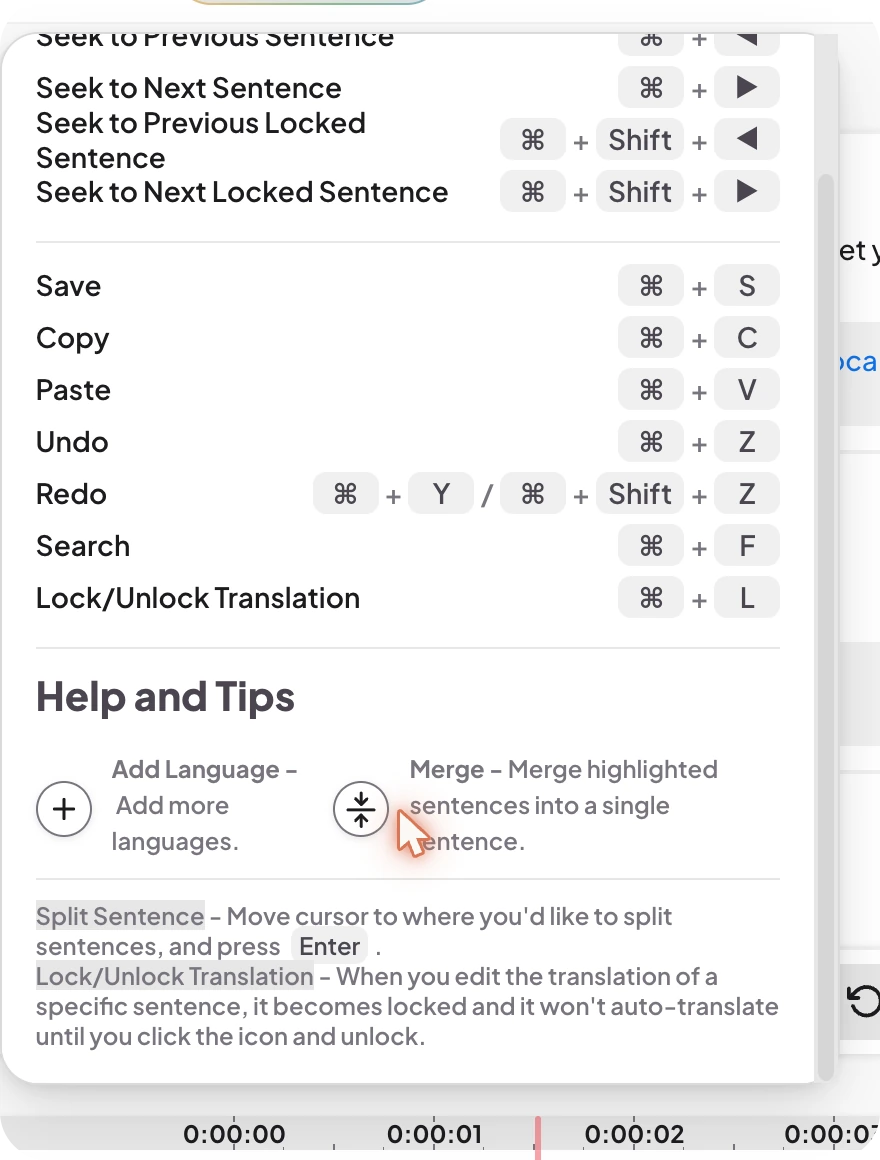
- Add Language: the + button next to the language tabs adds more languages. See How to Translate a Video Automatically.
- Merge: the merge button between two lines merges highlighted sentences into a single sentence.
- Split Sentence: move your cursor to the place where you want to split a sentence, then press Enter.
- Lock/Unlock Translation: when you edit the translation of a sentence, it becomes locked and will not be auto-translated again until you click the lock icon to unlock it.
Frequently asked questions
Select the ? button at the top left of the subtitle, voiceover or transcript editor. A Keyboard Shortcuts panel opens.
Press Tab in any editor.
Click inside the sentence where you want the split and press Enter.
When you edit a translated sentence by hand, it locks so automatic translation does not overwrite your change. Press Command + L, or click the lock icon, to unlock it.
The panel shows the Command key symbol on a Mac. On other systems the same shortcuts use Control instead.