Dictionary & Context: Improve Transcription and Translation Accuracy
Dictionary & Context in Maestra Studio helps the transcription and translation models get your specific terms right. Open it from Dictionary & Context under Workspace in the left sidebar. It has three tabs: Transcription Dictionary, Translation Glossary, and Context.
What you need before you start
- A Maestra Studio account that you are signed in to. If you do not have one, create a free account.
- A plan that includes Dictionary & Context. See Credits, Plans and Usage.
Transcription Dictionary
Add words the transcription model should always recognize correctly, such as industry jargon, brand names, product names, or unusual terms. If a word might be misheard or misspelled, put it here.
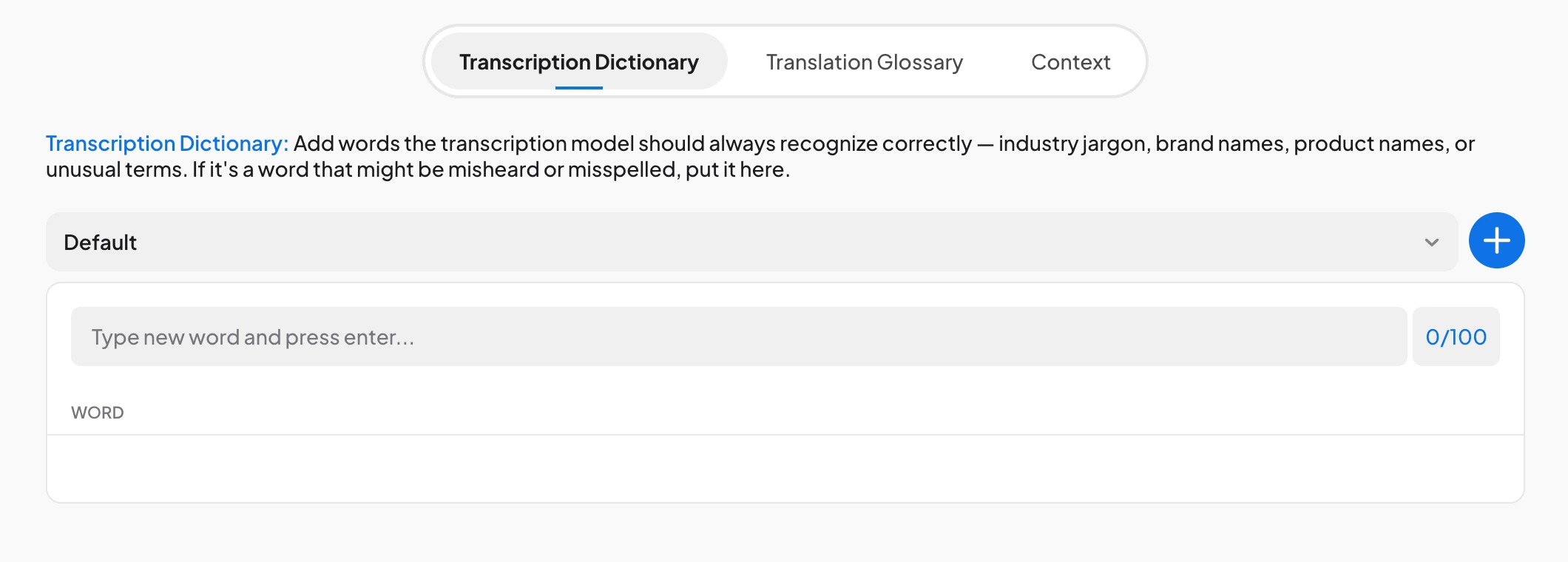
- Open the Transcription Dictionary tab.
- Choose a dictionary from the menu at the top. The Default dictionary is always available, and the plus button next to the menu adds another one.
- Type a word or phrase in Type new word and press enter and press Enter. The counter beside the field shows how many words you have added.
Manage your dictionaries

- The plus button next to the menu creates a new dictionary right away, so select it only when you want one.
- The pencil icon beside a name renames that dictionary.
- The small x beside a dictionary you created deletes it, after a confirmation. The default dictionary cannot be deleted.
To use a dictionary, turn on Use transcription dictionary when you upload a file. See Upload a File and Create Subtitles.
Translation Glossary
A glossary controls exactly how specific words and phrases are translated. It works well for technical terms, brand names, or expressions that should not be translated literally. You choose the source word and what it becomes in the target language.
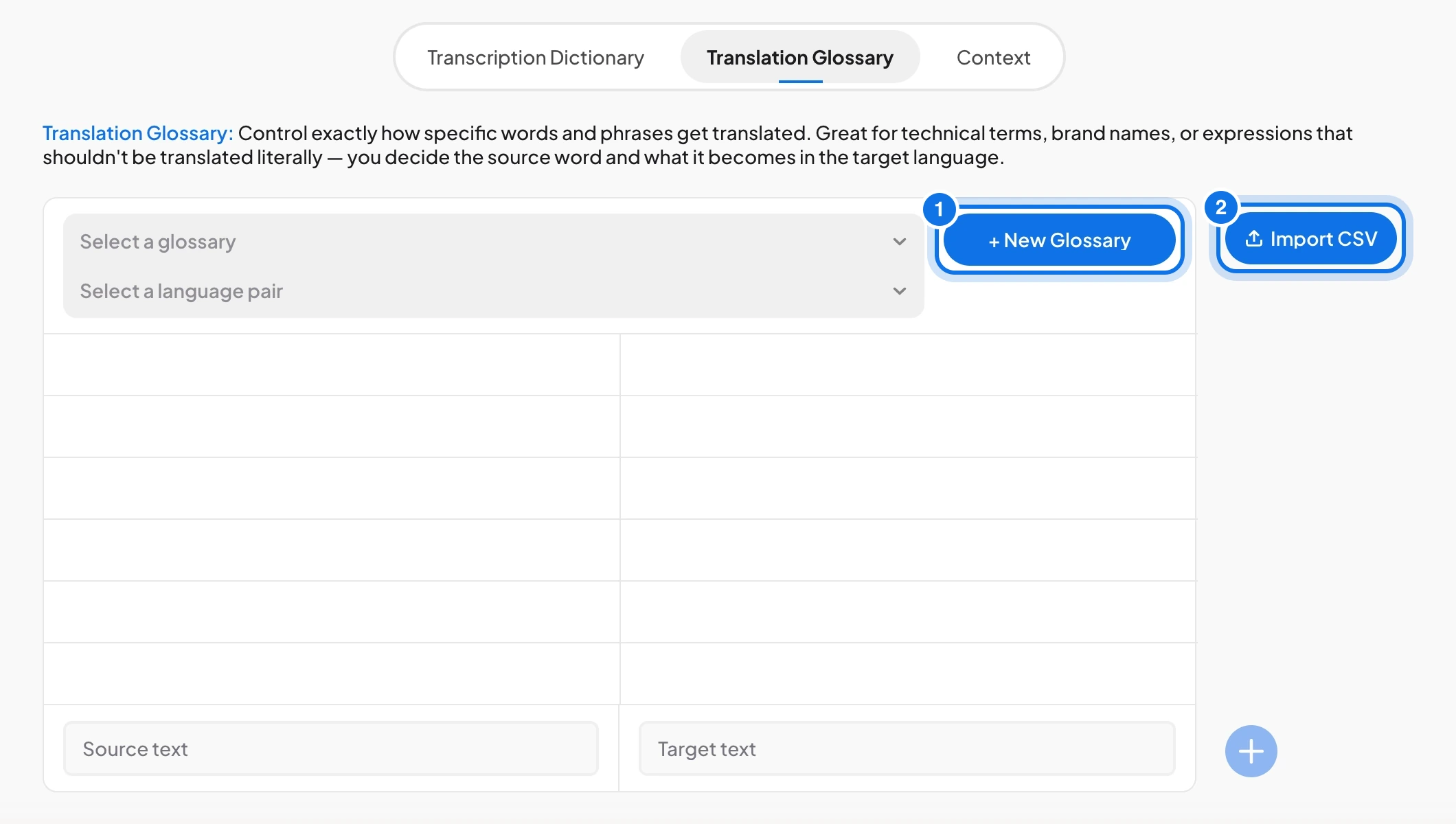
- Open the Translation Glossary tab and select New Glossary (marked 1).
- Select a language pair.
- Enter the Source text and the Target text, then select the plus button to add the pair. To add many pairs at once, select Import CSV (marked 2).
To use a glossary, turn on Use translation glossary when you upload a file. The glossary works with DeepL translation, and you set the target language for glossary use.
Context
Context gives the model background about your recording. Set key-value pairs that describe the domain, the participants, or the topic, and add background text that gives the model a deeper picture of the situation.
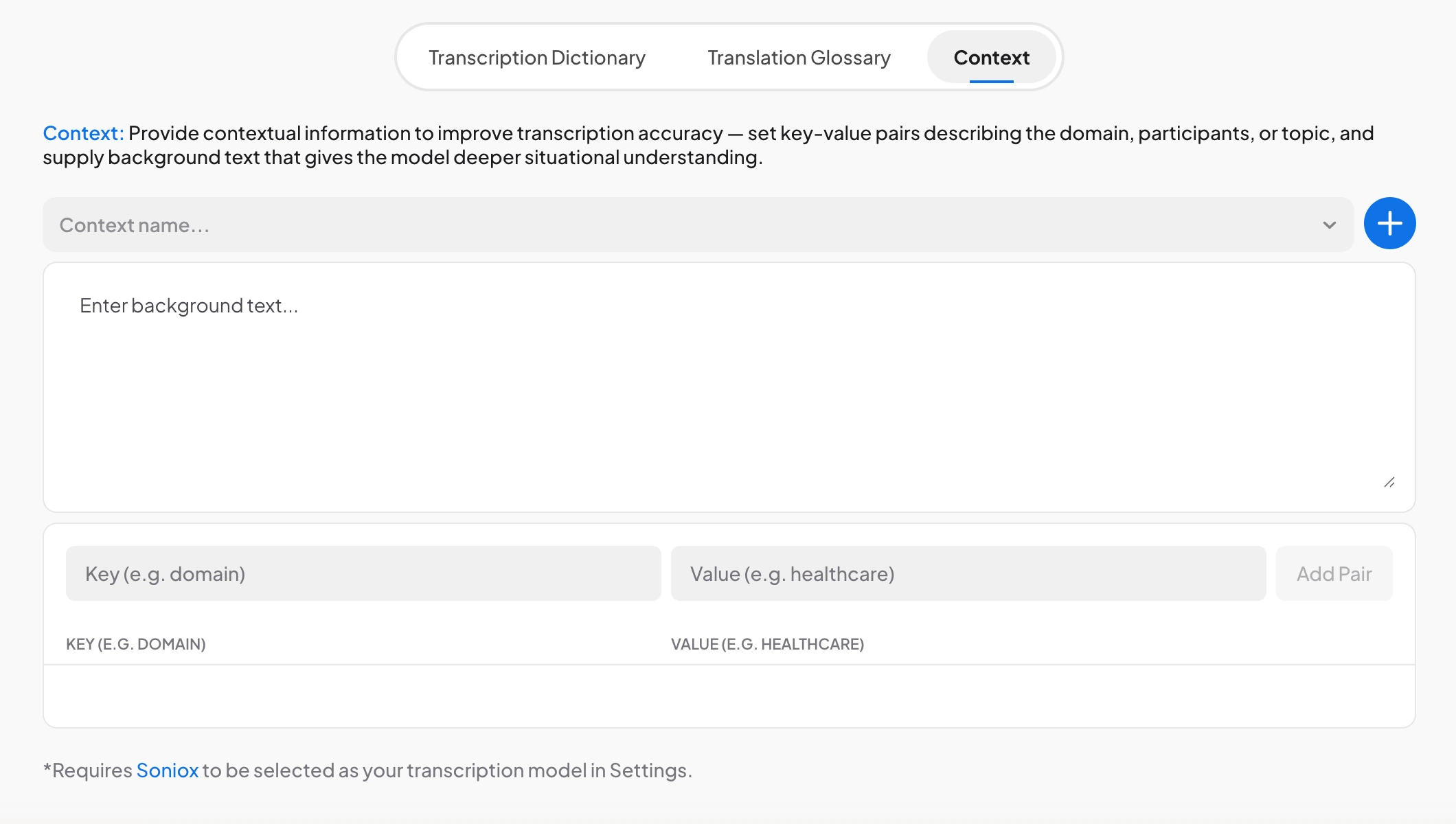
- Open the Context tab and enter a Context name.
- Write background text in Enter background text.
- Add Key and Value pairs, such as a key of domain and a value of healthcare, and select Add Pair.
Context requires Soniox to be selected as your transcription model in Settings. To use it, turn on Use transcription context when you upload a file.
Frequently asked questions
A transcription dictionary improves how words are written in the transcript. A translation glossary controls how words are translated. Context gives the model background information about the recording.
The Transcription Dictionary shows a counter next to the entry field so you can see how many words you have used against the limit.
Yes. Use Import CSV on the Translation Glossary tab to add many source and target pairs at once.
Context requires Soniox to be selected as your transcription model in Settings. Change the model and the option becomes available.
In the upload window. Use transcription dictionary, Use transcription context, and Use translation glossary each have their own toggle.