How to Share a File and Embed the Player in Maestra Studio
The Share button in the Maestra Studio editors opens a panel with two tabs. Share invites people to a file by email. Embed gives you a player that you can paste into your own website or blog, with subtitle or voiceover options.
What you need before you start
- A file open in the editor. See Upload a File and Create Subtitles to create one.
- For Embed, a plan that includes the embed player. Check the Plans page if the option is unavailable.
Share a file with people
- Open the file and select Share in the top bar.
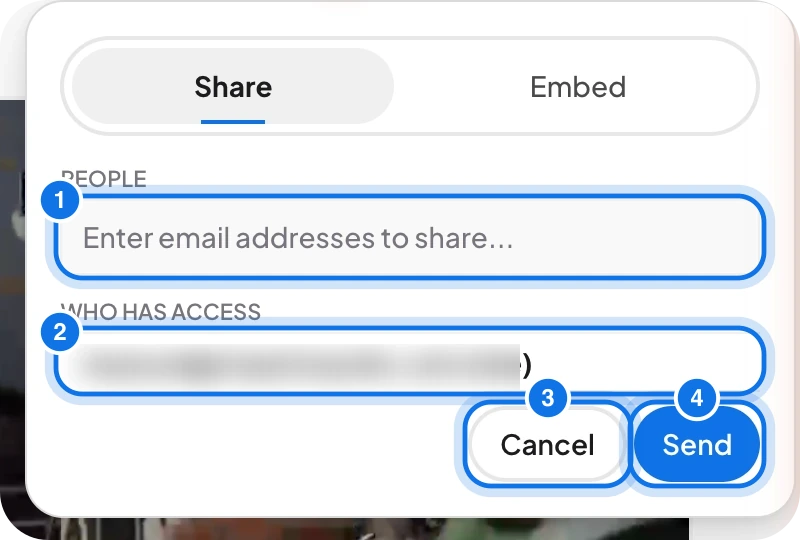
- On the Share tab, type one or more email addresses in People (marked 1).
- Check Who has access (marked 2) to see who can already open the file. Your own account is marked (me).
- Select Send (marked 4), or Cancel (marked 3) to close the panel.
To work with a whole team in shared spaces, see Collaborate with Maestra Studio Teams.
Embed the player on your website
The embed player lets you show a video from Maestra Studio on your own blog or website, with subtitle or voiceover options. When you change the file in Maestra Studio, the embedded player updates too.
- Open the file and select Share, then open the Embed tab.
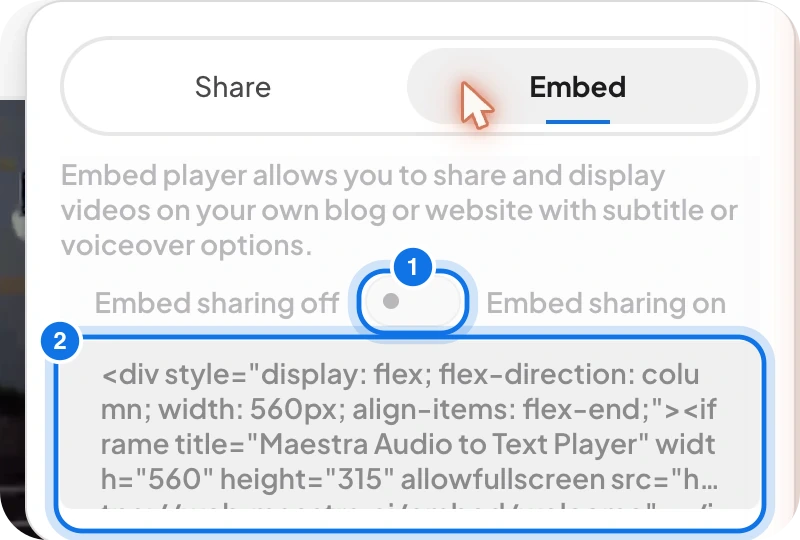
- Turn the switch (marked 1) from Embed sharing off to Embed sharing on.
- Copy the code in the box (marked 2). It is an HTML snippet that uses an iframe, 560 pixels wide and 315 pixels tall by default.
- Paste the code into the page on your website where the player should appear.
Turning embed sharing off stops the player from being shown on the pages that use the code.
Frequently asked questions
Open the file, select Share, type their email address under People and select Send.
Open the Share panel and read the Who has access list.
Open the file, select Share, open the Embed tab, turn on Embed sharing and copy the code. Paste it into your page.
The code uses an iframe that is 560 pixels wide and 315 pixels tall by default. You can change these values in the code.
Yes. The player reads the file from Maestra Studio, so changes you make in the editor show in the embedded player.