Live Translation
Real-time translation in 100+ languages, original and translated captions, side by side.
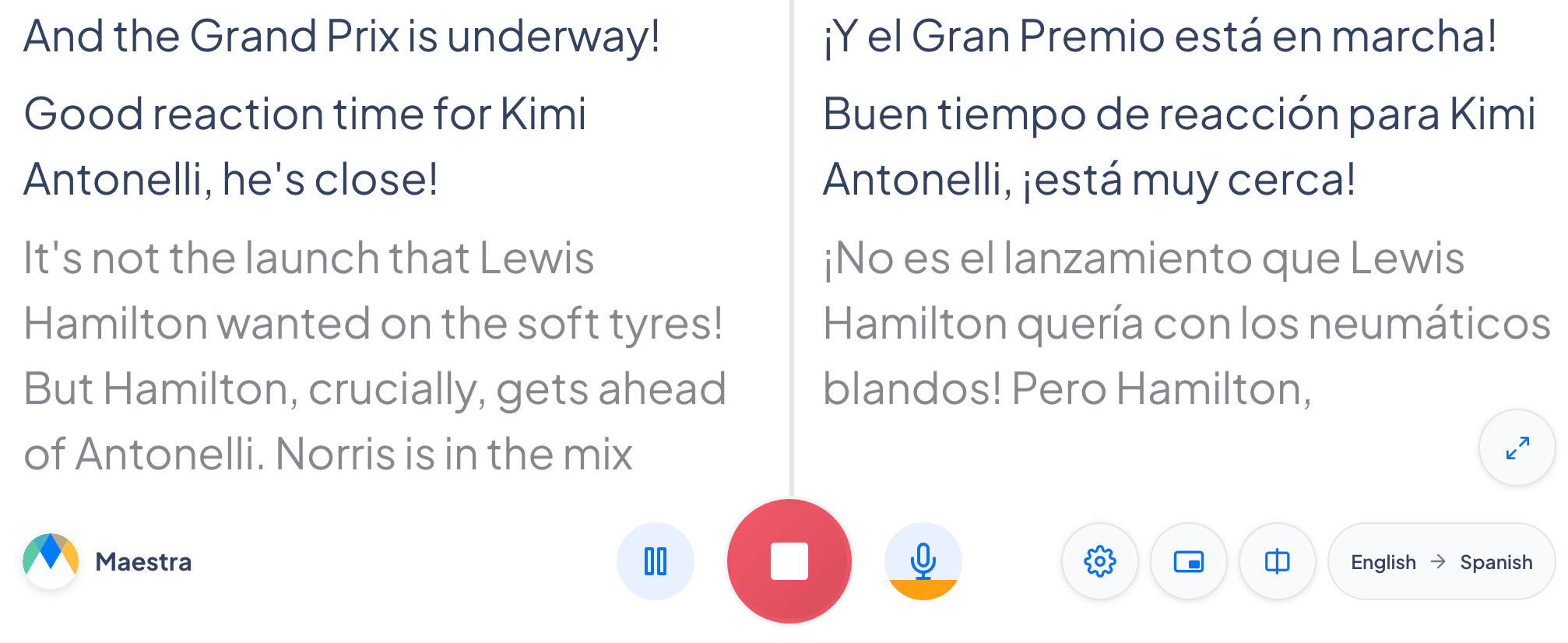
Translate mode transcribes what you say and instantly translates it into another language, showing the original caption and the translated text on screen together, in real time.
This article covers how to start a translated session and using two-way translation.
How to start a session
- Select the Translate tab
live.maestra.ai works best on Chrome.
- Choose your languages
Add one or more source languages (or select Detect Language), then choose the target language to translate into.
You can add several source languages at once, so Maestra keeps up with a conversation where speakers switch between them.
- Allow microphone access
Click the microphone button and choose Allow when your browser prompts.
If you denied microphone access by mistake, you will need to allow it again. On Chrome, click the info icon (the circled "i") at the left of the address bar, open Site settings, set Microphone to Allow, then reload the page.
- Start speaking
Speak at a steady pace. Translated captions will start appearing.
Two-way translation
Turn on Two-way translation in the Translate tab when two people each speak a different language, so translation happens automatically in both directions.
Maestra detects which language is being spoken and keeps each speaker’s captions separate, so each person reads the other’s words translated into their own language.
Frequently asked questions
Yes, in a shareable session. Add the translation languages you need, then share the session by link or QR code, and each guest chooses which language to read on their own screen.