How to Clone a Voice in Maestra Studio
Voice cloning in Maestra Studio copies the sound of a speaker from an audio or video sample, so you can use that voice in your voiceover projects. Open Cloned Voices under Workspace in the left sidebar to manage the voices you create.
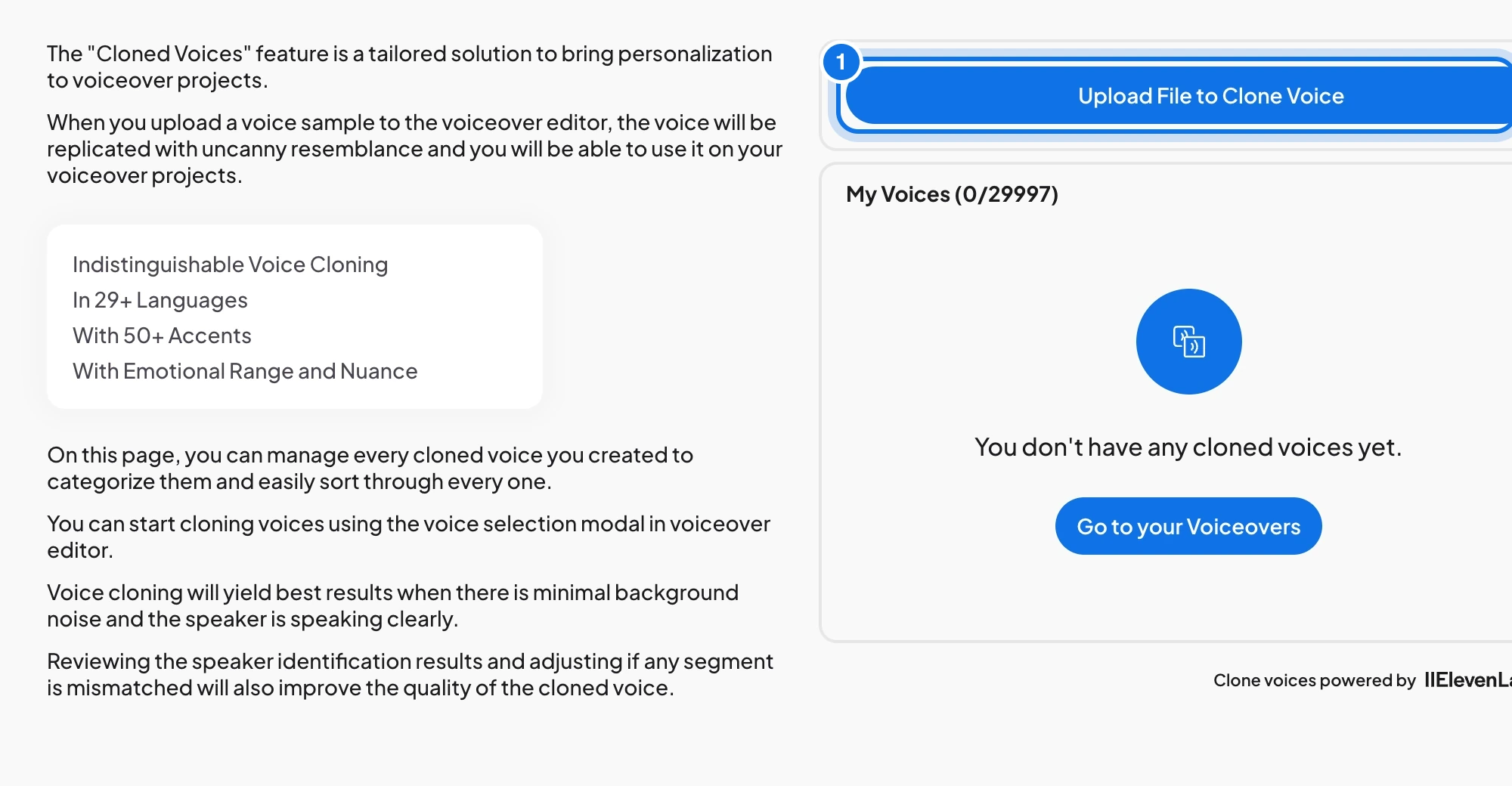
The highlighted button (marked 1) is Upload File to Clone Voice, where you start a clone.
What you need before you start
- A Maestra Studio account that you are signed in to. If you do not have one, create a free account.
- A clear audio sample in MP3 format, up to 1 GB, or a voiceover project that has the speaker's voice.
What voice cloning offers
- Indistinguishable voice cloning, with emotional range and nuance.
- Support for more than 29 languages.
- More than 50 accents.
Start a clone
There are two ways to begin:
- On the Cloned Voices page, select Upload File to Clone Voice.
- In a voiceover project, open the voice selection window from the voiceover editor and use the Cloned tab.
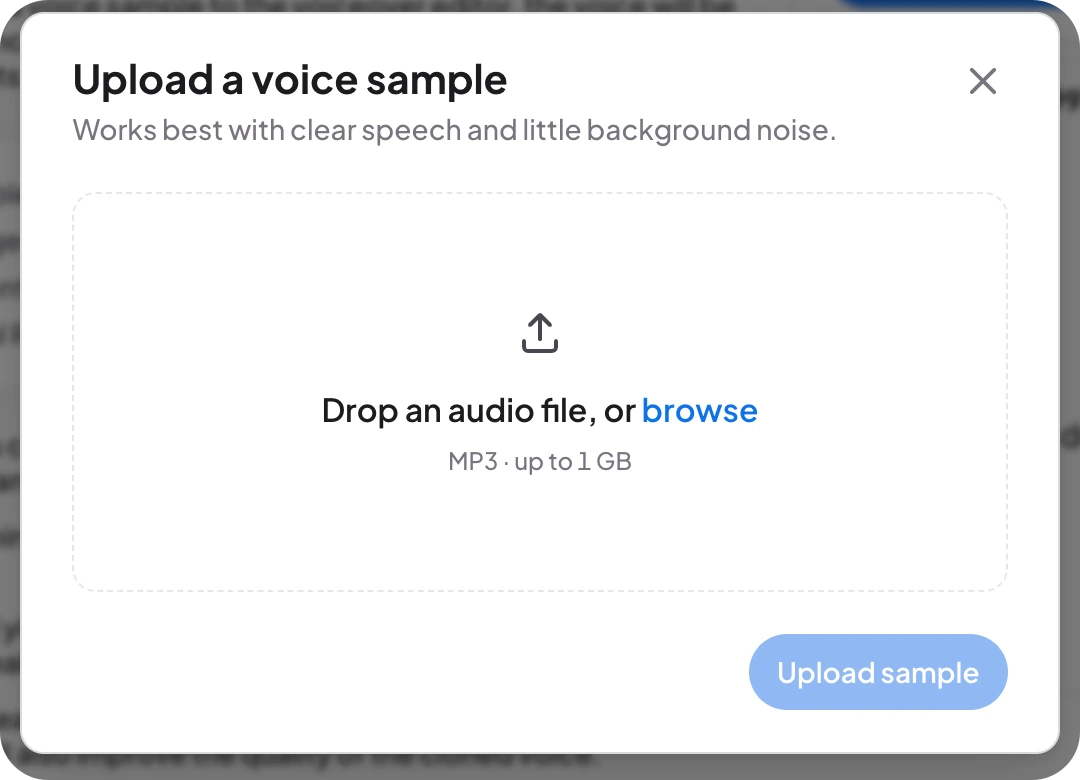
In the Upload a voice sample window, drop an MP3 file or select browse, then select Upload sample. The window recommends clear speech with little background noise.
Cloned voices appear under My Voices on the Cloned Voices page, and in the Cloned tab when you assign voices to speakers.
Get the best results
- Use a sample with minimal background noise.
- Use a sample where the speaker is speaking clearly.
- When you clone from a file with several speakers, review the speaker identification first. If a segment is assigned to the wrong speaker, fix it, because mismatched speakers lower the quality of the cloned voice.
Use a cloned voice in a voiceover
Open your voiceover, select Voices, choose the Cloned tab, pick your cloned voice, and assign it to a speaker. Then select AI Dubbing to generate the voiceover. For the full voiceover workflow, read Voiceover Editor.
Cloned voices are created with ElevenLabs technology.
Frequently asked questions
Yes. Upload a clean recording of your voice on the Cloned Voices page, or clone from a speaker in one of your voiceover projects.
Maestra Studio's cloned voices support more than 29 languages, with more than 50 accents.
A recording with minimal background noise where one person speaks clearly. If the file has several speakers, check that each speaker is assigned correctly before you clone.
Under My Voices on the Cloned Voices page, and in the Cloned tab of the voice selection window in a voiceover project.