Credits, Plans and Usage in Maestra Studio
Maestra Studio uses credits to pay for processing such as transcription, subtitles, translation and voiceovers. Your balance is always visible in the credits box at the bottom of the left sidebar. This guide explains where to see your balance and usage, how to compare plans, and how to earn free minutes.
What you need before you start
- A Maestra Studio account that you are signed in to. If you do not have one, create a free account.
Check your credit balance
The credits box at the bottom of the left sidebar shows how many credits you have left. It also holds two shortcuts:
- Upgrade: opens the Plans page.
- Invite and earn rewards!: opens the referral page.
Your balance also appears on the Account tab next to Total Credits Left.
See your usage
Select View Usage on the Account tab to open the Usage Overview.
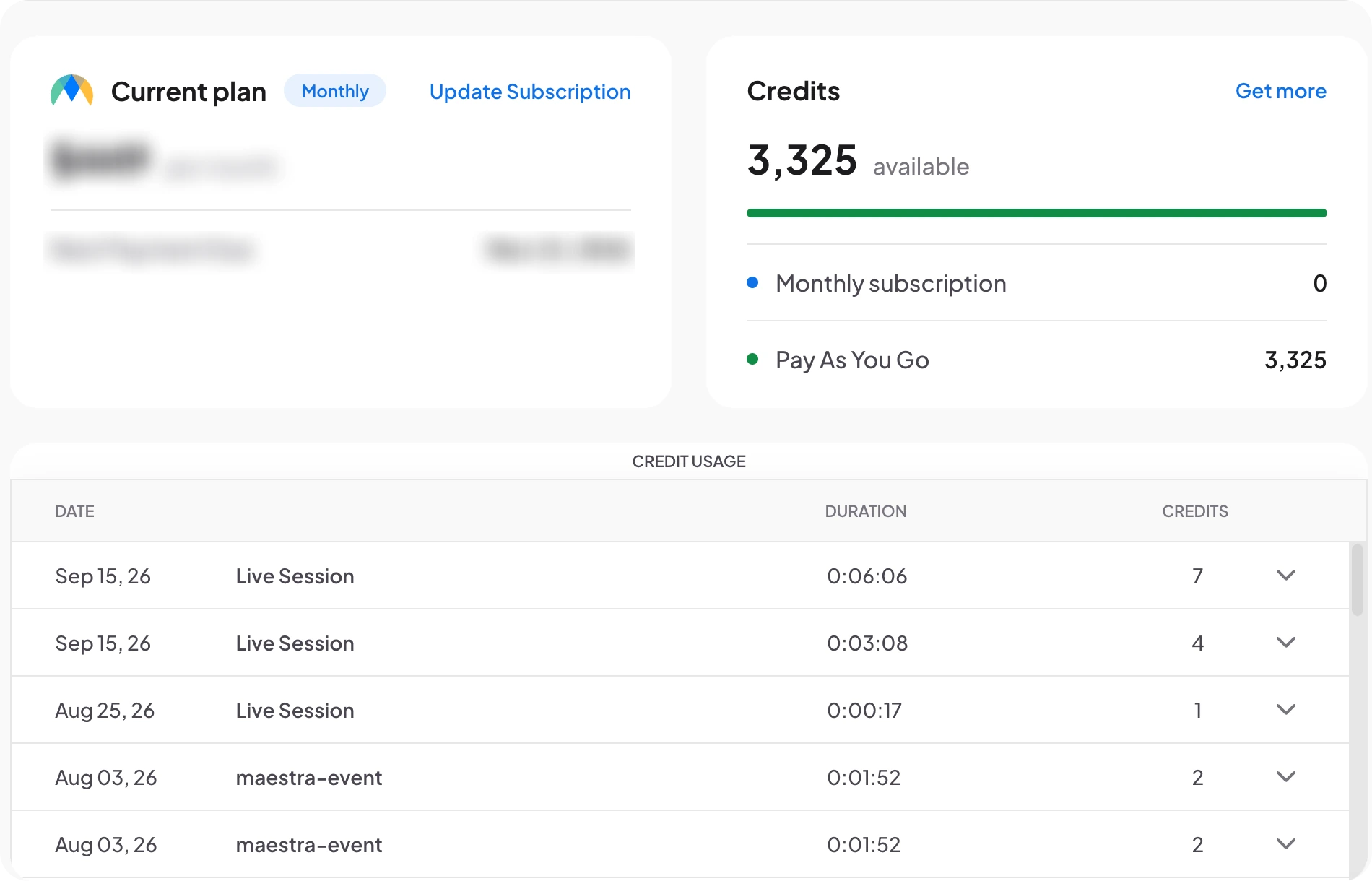
- Current plan: shows whether your plan is monthly or yearly, the price, and the date of the next payment. Update Subscription opens your subscription settings.
- Credits: shows how many credits are available. The list under the bar splits them into credits from your Monthly subscription and credits you bought with Pay As You Go. Get more opens the Plans page.
- Credit usage: a table of what used your credits. Each row shows the date, the file or session name, its duration and the credits used. Select the arrow at the end of a row to expand it.
Select Manage Billing & Subscription at the top right to change your payment details or plan.
Compare plans
Select Upgrade in the sidebar, or Get more on the Usage Overview, to open the Plans page.
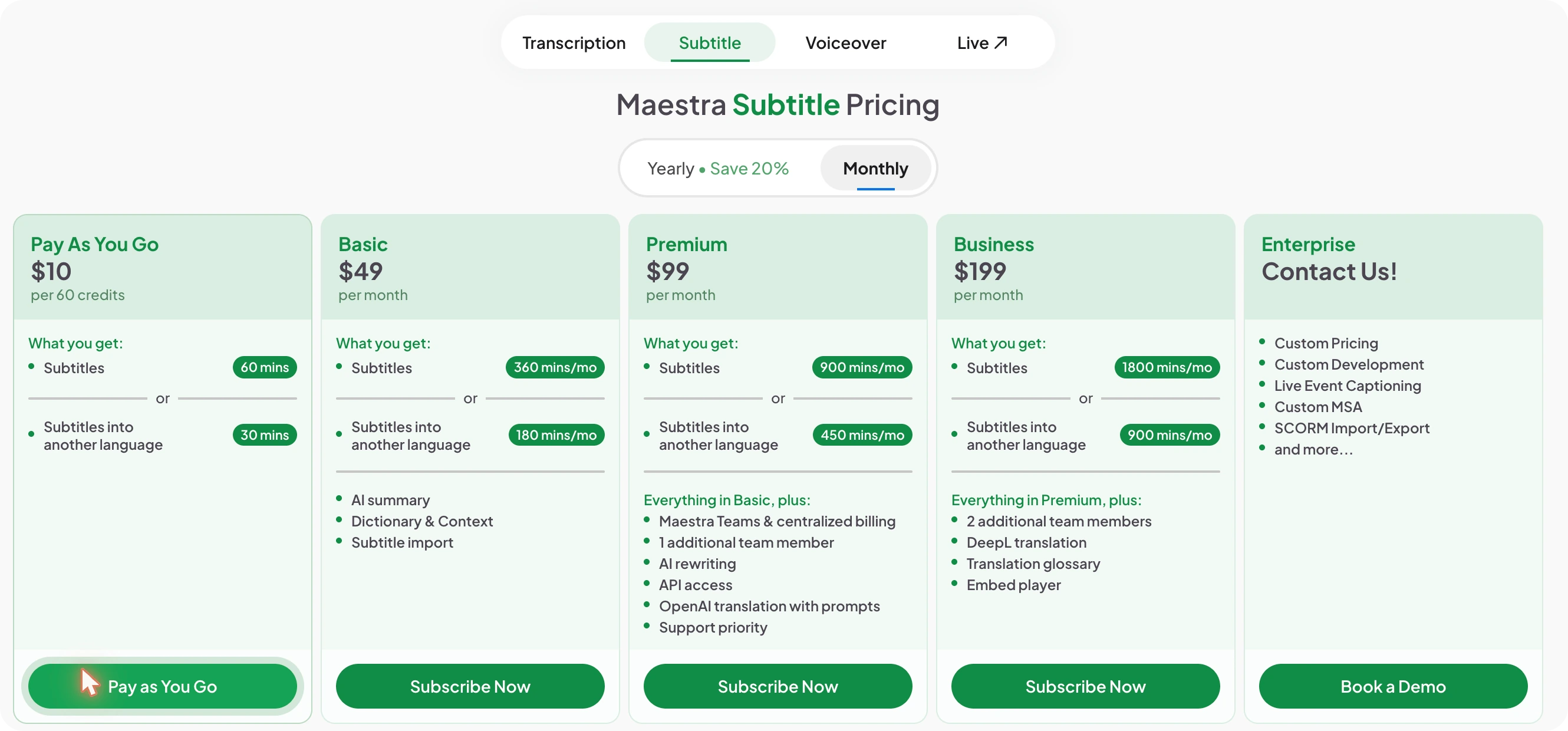
- Product tabs: choose Transcription, Subtitle or Voiceover to see pricing for that product. Live opens the Maestra Live pricing in a new tab.
- Yearly and Monthly: switch between billing periods. Yearly billing shows a saving.
- Plans: Pay As You Go lets you buy credits as you need them. Basic, Premium and Business are subscriptions with a monthly allowance. Enterprise is for custom needs. Select Contact Us or Book a Demo to talk to the team.
Some features depend on your plan. For example, AI Summary, Dictionary & Context and subtitle import are listed from the Basic plan, while API access, a translation glossary and the embed player appear on higher plans. Check the Plans page for the current list before you subscribe.
Earn free minutes by inviting others
Select Invite and earn rewards! to open the referral page.
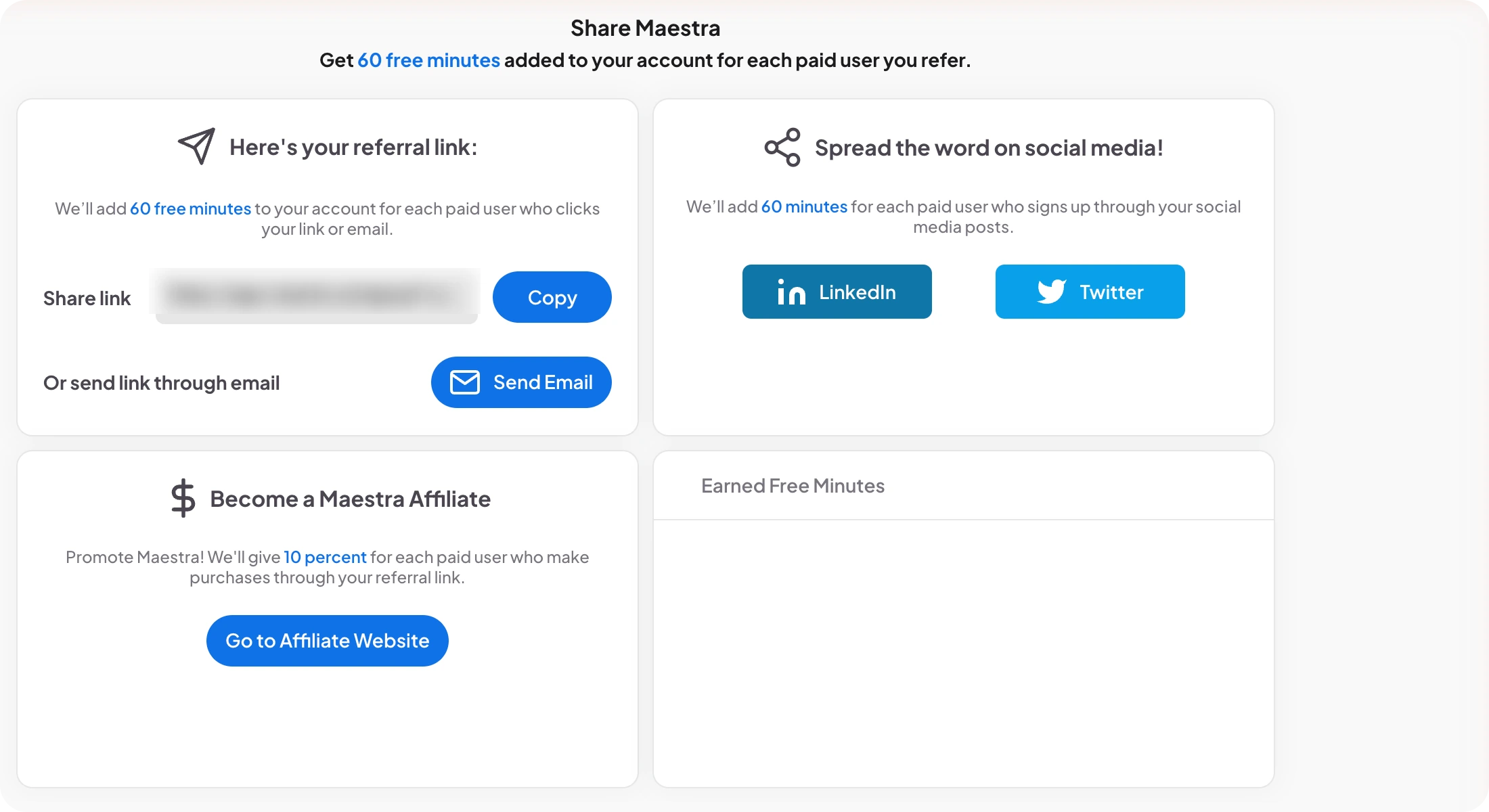
- Here's your referral link: copy your link with Copy, or select Send Email to email it. You earn free minutes for each paid user who clicks your link or email.
- Spread the word on social media: share your link with the LinkedIn or Twitter buttons. You earn free minutes for each paid user who signs up through your posts.
- Become a Maestra Affiliate: earn a percentage of the purchases of paid users who sign up through your link. Select Go to Affiliate Website to join.
- Earned Free Minutes: a list of the minutes you have earned so far.
Frequently asked questions
In the credits box at the bottom of the left sidebar, or next to Total Credits Left on the Account tab.
Open the Account tab, select View Usage, and read the Credit usage table on the Usage Overview.
Select Upgrade in the sidebar or Get more on the Usage Overview to open the Plans page, then choose Pay As You Go or a subscription.
Monthly subscription credits come with your subscription plan. Pay As You Go credits are credits you bought separately. The Usage Overview shows both.
Share your referral link from the Invite and earn rewards page. You earn free minutes for each paid user who signs up through it.