How to Edit a Transcript in Maestra Studio
The Maestra Studio transcript editor lets you read your transcript next to the video, fix mistakes, format the text, add notes, and export it as plain text, Word, PDF, or JSON. Open any file from the Transcription list to start.
What you need before you start
- A Maestra Studio account. If you do not have one, create a free account.
- A transcription file with the status Ready. See Upload a File and Get a Transcript.
Know the editor layout
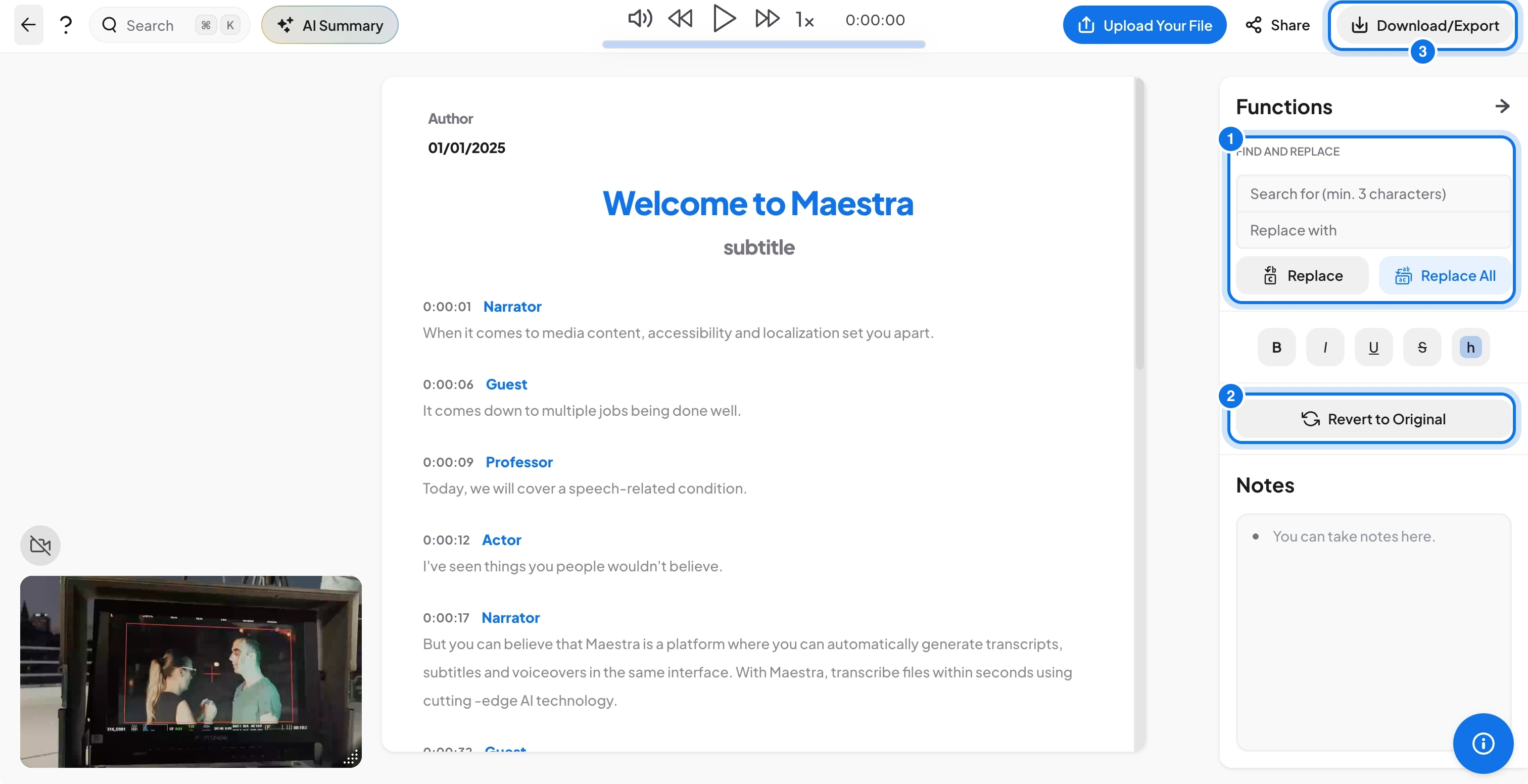
The numbered markers point to three controls this guide uses later:
- 1: find and replace
- 2: Revert to Original
- 3: Download/Export
Use the top bar
- ? (help): opens the Keyboard Shortcuts panel. See Keyboard Shortcuts.
- AI Summary: writes a summary of the transcript. See AI Summary.
- Share: invites people to the file. See Share and Embed.
- Download/Export: opens the export panel (see below).
Read and correct the transcript
The transcript shows each speaker's name and timestamp above their text. Select any text to edit it, and change a speaker name to relabel the speaker. Use the controls at the top of the page to play the video, jump back or forward, and change the playback speed.
Use the Functions panel
- Find and replace: type a word or phrase (at least 3 characters) in Search for, type its replacement in Replace with, then select Replace or Replace All.
- Text formatting: apply bold, italic, underline, strikethrough, or highlight to selected text. The shortcuts are ⌘ + B, I, U, L and H.
- Revert to Original: undo your changes and restore the original transcript.
- Notes: write notes for yourself or your team in the notes box.
Press ⌘ + O to show or hide the sidebar. For every shortcut, see Keyboard Shortcuts.
Share the transcript
Select Share at the top right to invite colleagues to the file. To work with a team, see Collaborate with Teams.
Export the transcript
Select Download/Export, then open the Transcript tab. Choose the languages and options, then download the file.
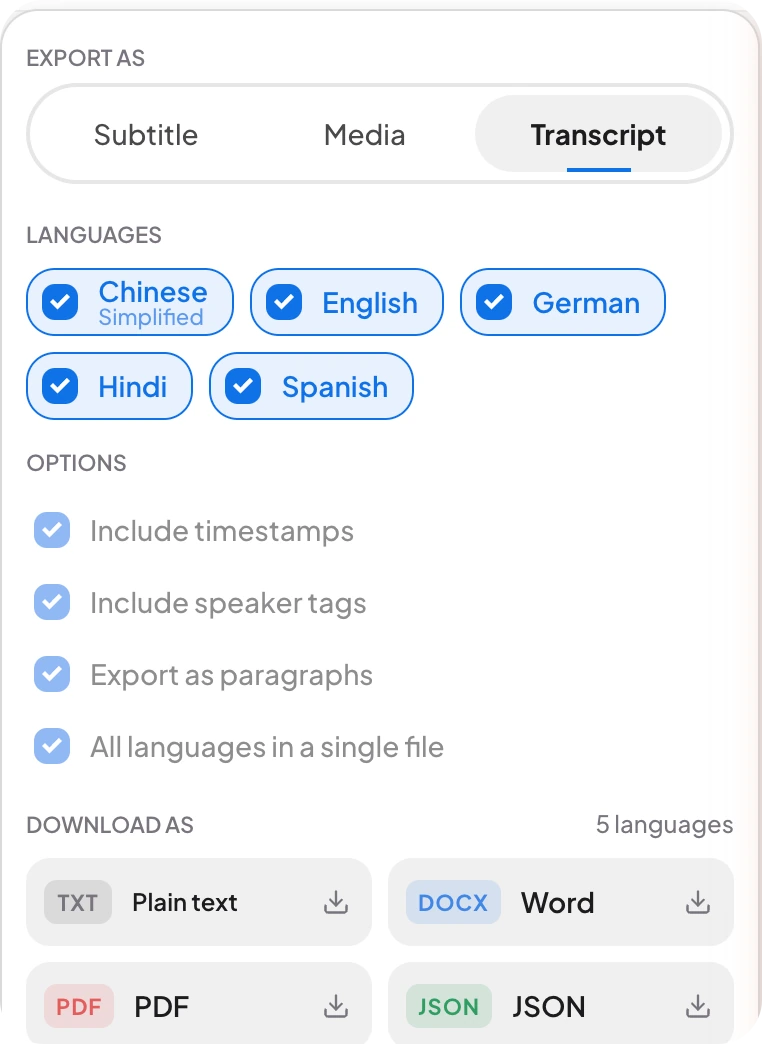
- Include timestamps and Include speaker tags add that information to the file.
- Export as paragraphs groups the text into paragraphs.
- All languages in a single file combines translations into one document.
- Download as Plain text, Word, PDF, or JSON.
Frequently asked questions
Open the Functions panel, type the word in Search for and its replacement in Replace with, then select Replace for one match or Replace All for every match.
Yes. Select Revert to Original in the Functions panel to restore the original transcript.
Yes. Turn on Include speaker tags and Include timestamps in the Transcript tab of the export panel before you download.
Maestra Studio exports transcripts as plain text, Word (DOCX), PDF, and JSON.
Yes. Select Share at the top right of the editor to invite colleagues.