How to Get Maestra Studio Notifications in Slack
To get Maestra Studio notifications in Slack, open Account, select Add to Slack next to Enable Slack notifications, approve the connection in Slack, and choose a channel. Maestra Studio then posts project updates to that channel.
Set up Slack notifications
- Open Account from the settings icon next to your name at the bottom of the left sidebar.
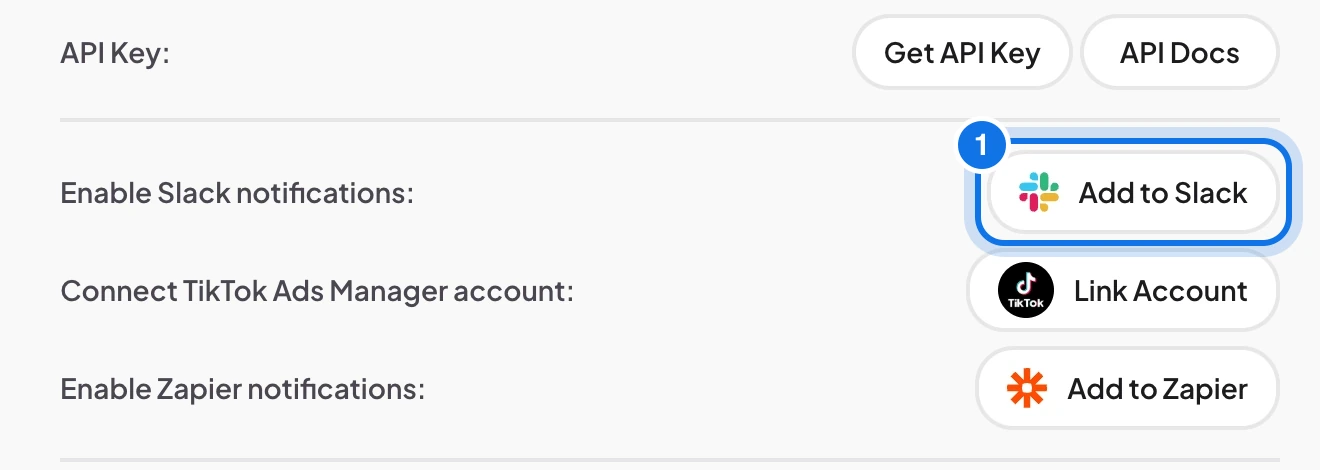
- Next to Enable Slack notifications, select Add to Slack (marked 1 below).
- In Slack, review what Maestra Studio can access and select the channel where notifications should go.
- Approve the connection and return to Maestra Studio.
Choose which updates to send
Once connected, you can choose which notifications Maestra Studio posts to the channel. Examples include a finished transcription, a translation that was added, a file that is ready to download, and a new colleague who joined your team.
Frequently asked questions
The channel you choose when you approve the connection.
Finished transcriptions, added translations, files ready to download, and new team members.
Yes. Send file ready notifications via email is a separate option on the Account page.