How to Transcribe Zoom Recordings in Maestra Studio
To transcribe a Zoom recording in Maestra Studio, start a new transcription, subtitle, or voiceover, choose Zoom in the upload window, sign in to Zoom, and select the recording you want. Maestra Studio then processes it like any other file.
Connect Zoom and import a recording
- In app.maestra.ai, select Transcription, Subtitle, or Voiceover in the left sidebar and select the New button at the top right.
- In the upload window, select Zoom from the import sources.
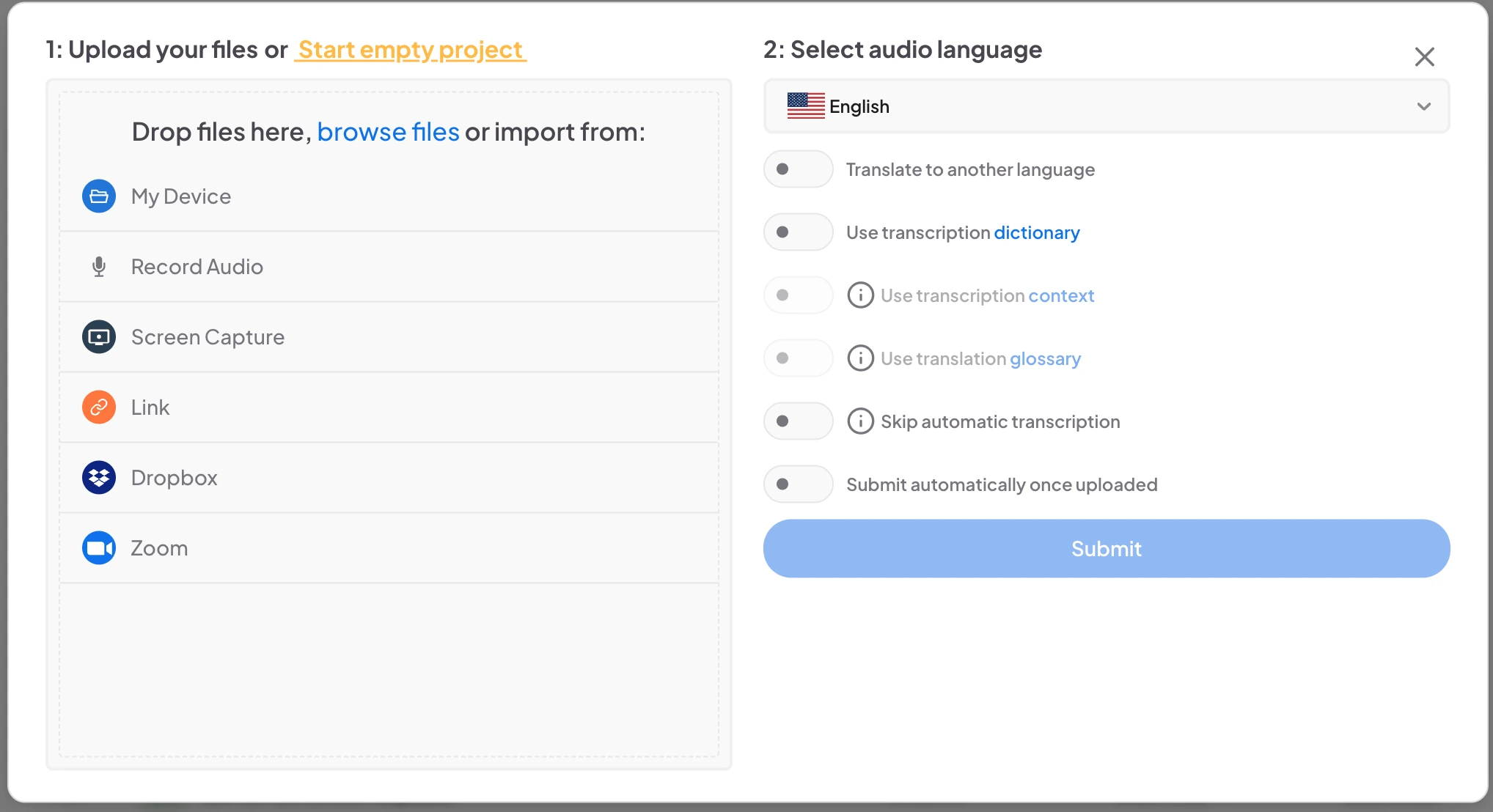
- Sign in to Zoom and give Maestra Studio permission when Zoom asks. This opens the Zoom website.
- Choose the recording you want to import.
- Choose the audio language and your other settings, then select Submit.
Remove the Zoom connection
To uninstall the Maestra Studio app from Zoom, open the Maestra Studio listing on the Zoom App Marketplace and select Remove.
Frequently asked questions
Maestra Studio imports recordings that are stored in your Zoom account. Which recordings you have depends on your Zoom plan.
Yes. Zoom appears as an import source in the Transcription, Subtitle, and Voiceover upload windows.
Open the Zoom App Marketplace, find Maestra Studio under your installed apps, and select Remove.