How to Connect Maestra Studio to Zapier
Zapier connects Maestra Studio to thousands of other web apps. To connect them, copy your Maestra Studio API key from the Account page, then add Maestra Studio as an app in your Zapier account and paste the key when Zapier asks for it.
Get your Maestra Studio API key
- Open Account from the settings icon next to your name at the bottom of the left sidebar.
- Find API Key and select Get API Key (marked 1 below).
- Copy the key. To learn what the API can do, select API Docs next to it.
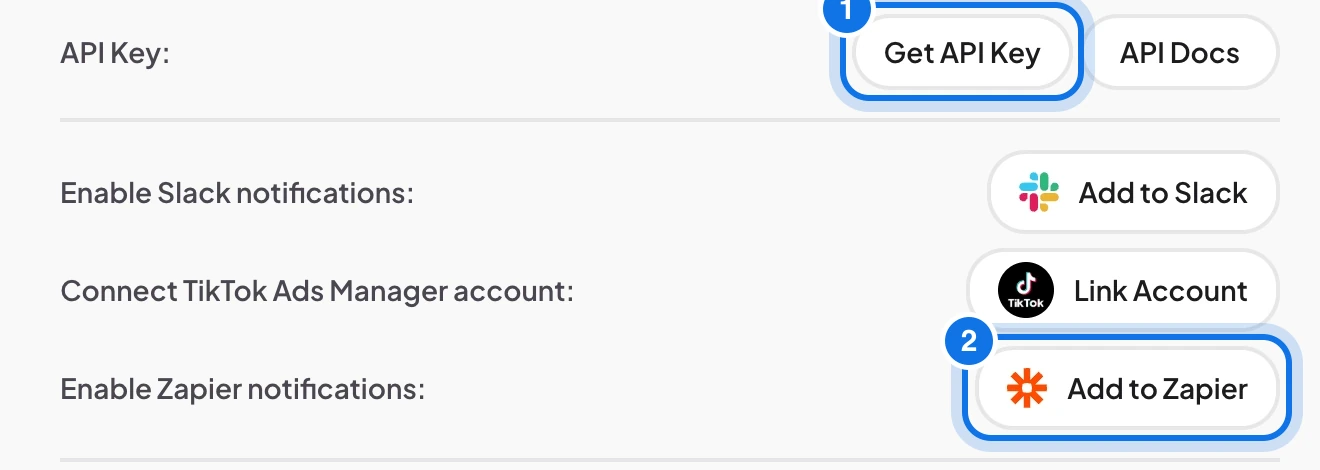
The button marked 2, Add to Zapier, starts the connection from the Maestra Studio side. Keep your API key private: anyone who has it can use your Maestra Studio account.
Connect Maestra Studio in Zapier
- Sign in to Zapier, or create a free account.
- Go to My Apps and select Connect a new account, then search for Maestra Studio.
- Paste your Maestra Studio API key when Zapier asks for it.
- Once connected, create a Zap that uses Maestra Studio.
You can also select Add to Zapier next to Enable Zapier notifications on the Account page to start from the Maestra Studio side.
Frequently asked questions
On the Account page, next to API Key. Select Get API Key.
No. The API key is a separate credential that lets other apps act on your behalf. Keep it private.
You can connect Maestra Studio to many other apps, for example to start a transcription when a new file arrives or to send results to another tool.
Select API Docs next to API Key on the Account page.